Installation Guide
Prerequisites
You must have an Android device, the app is not available on iOS at this time. Developing a version of the application compatible with Apple devices requires additional technical time, which could be feasible with support to fund an iOS developer dedicated to this task. Device on which the application has been successfully tested:
- Samsung Galaxy A50 (Android 11)
Install the App
The application is not currently available on the Google Play Store. You must download the .apk file directly from the following link:
Once the file is downloaded, you can open the .apk file from the location where it was saved (usually the "Downloads" folder).
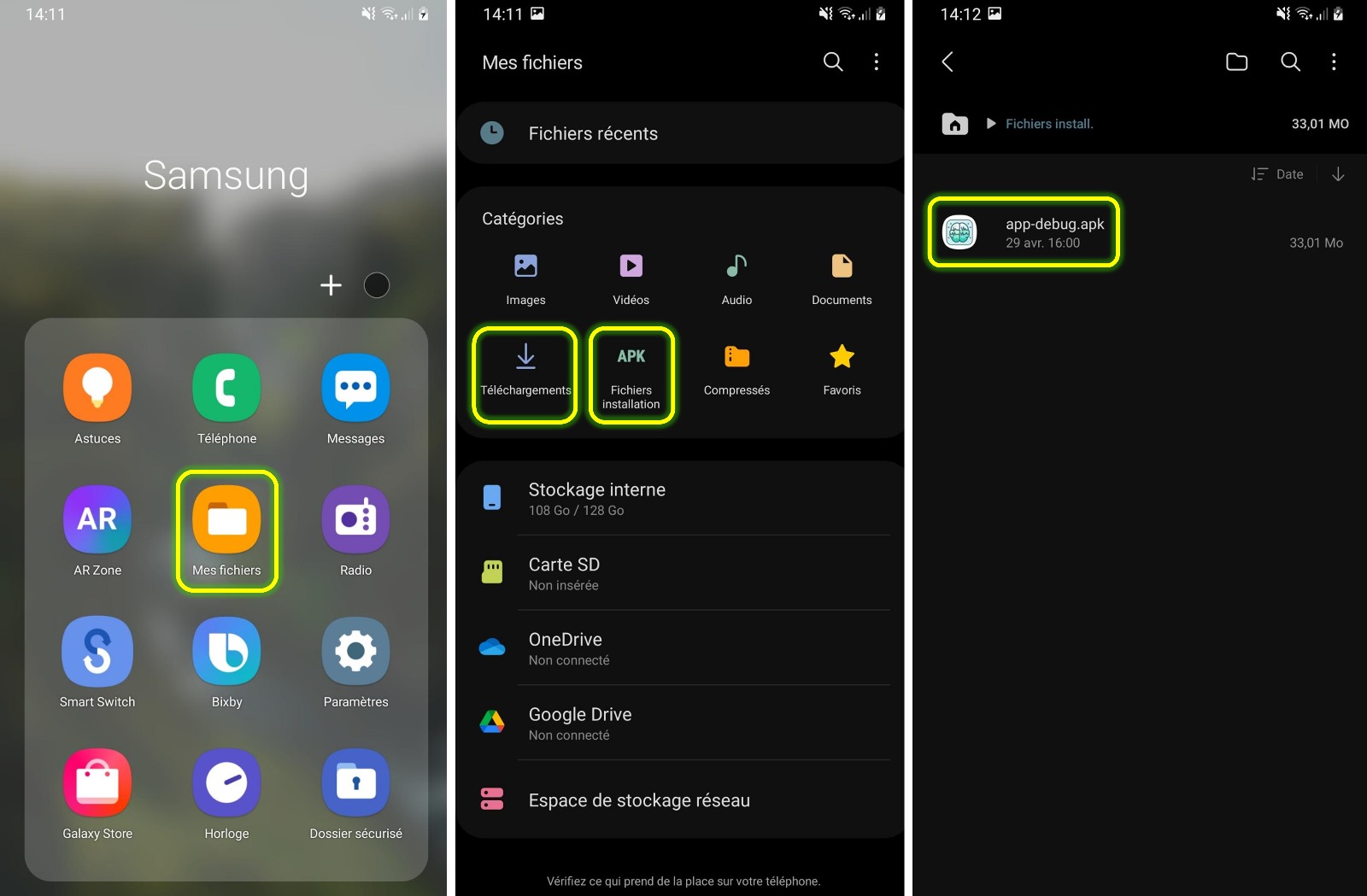
You will probably be asked to scan the application before installing it, or even not to install the application because it does not come from the Play Store. You can ignore these warnings and proceed with the installation.
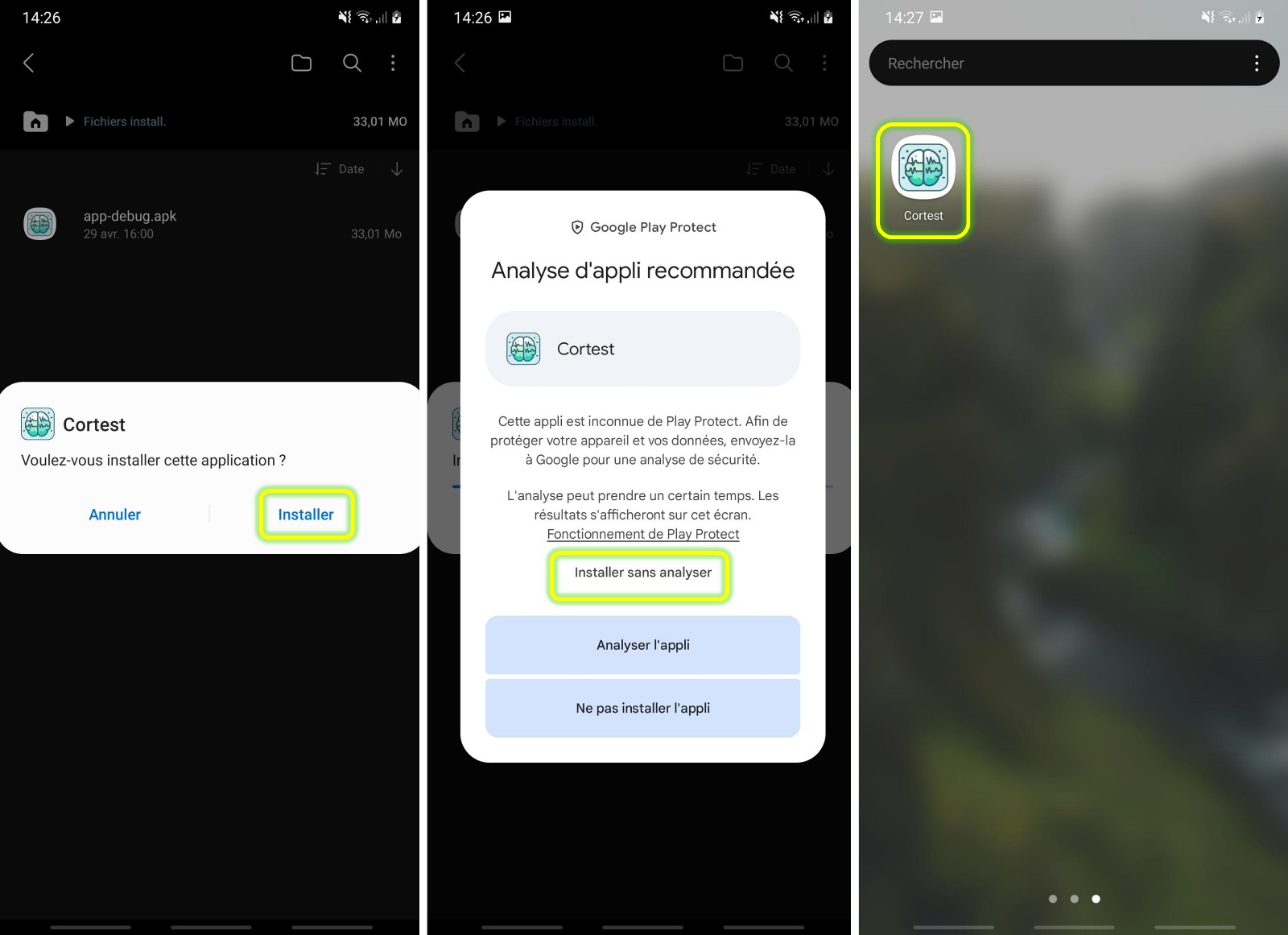
First Launch
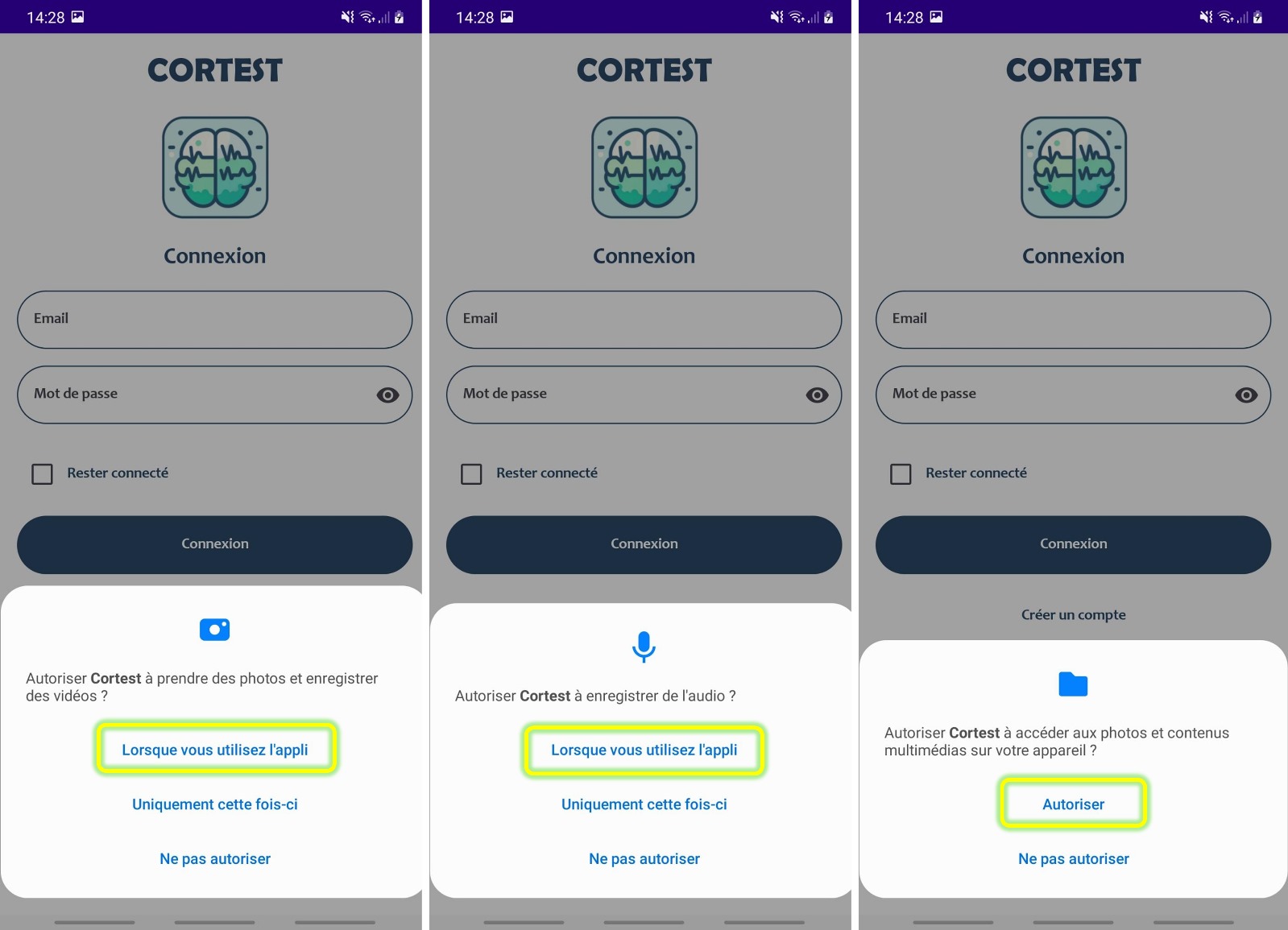
When you launch the app for the first time, it will ask you to authorize the use of your camera, microphone and access to your device's storage. This is necessary in order to save the videos captured by the app.
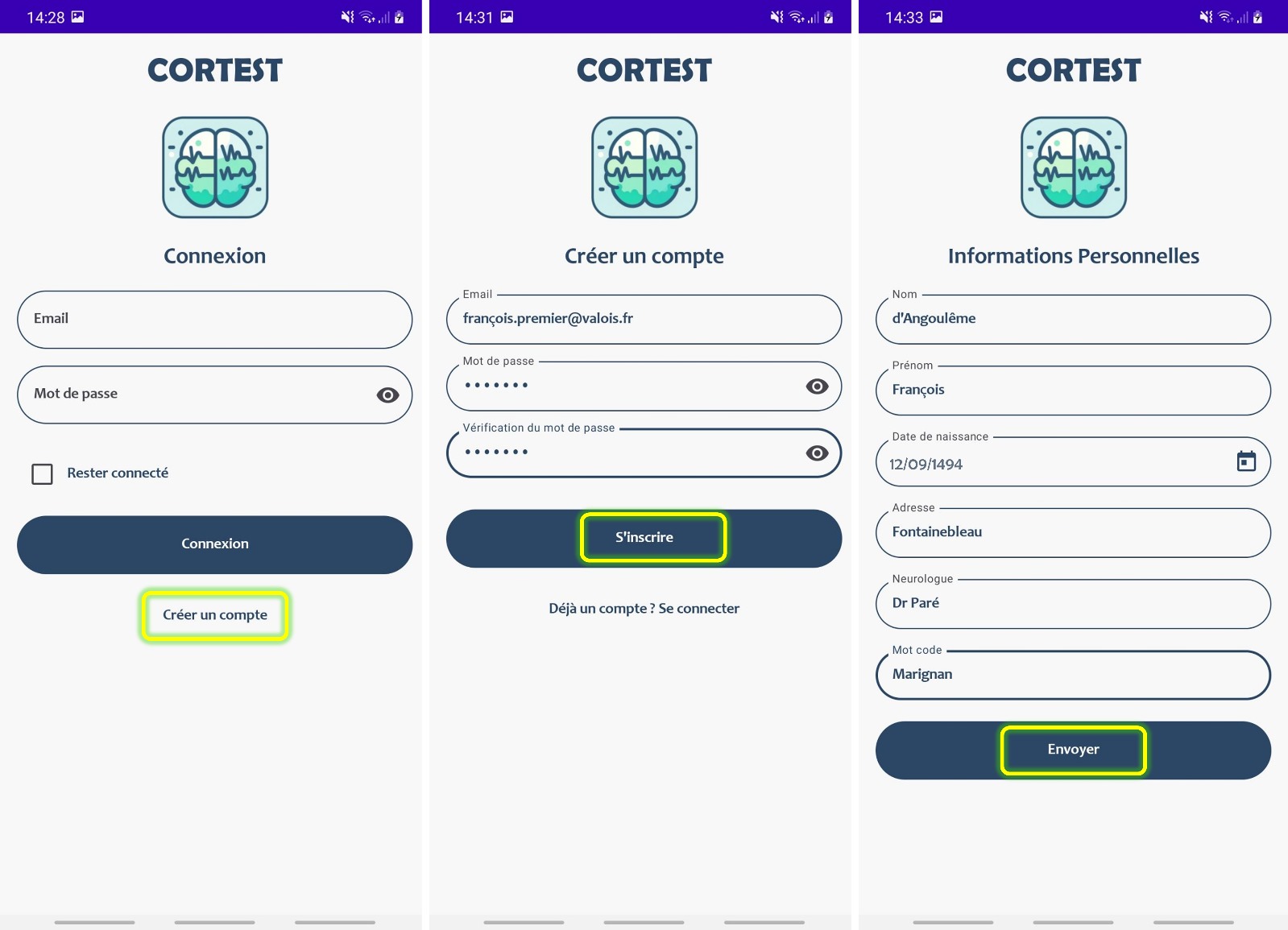
You will then need to create a profile by entering your identity and a "code word" of your choice. You will be asked this word verbally with the question "What is your code word?" at the start of a seizure to test your responsiveness. Choose a simple word (e.g. "cinnamon", "train", etc.).
Initial test configuration
This step allows you to configure the tests that will be requested during the recording of a seizure. You can choose between 2 functions :
- The "Hetero-test" function allows you to start recording with the rear camera of the device. This is useful when the application is installed on a carer's phone.
- The "Auto-test" function starts recordings using the front camera (selfie mode). This is useful when the application is installed on the patient's phone and they are testing themselves.
A list of basic tests is already pre-configured, which you can accept as it is. You will simply have to tick/untick each line to activate/deactivate a test. You can also scroll through the test categories to display the available tests that are not activated. The next screen allows you to change the order in which tests are displayed during a seizure : the tests at the top of the list are requested first.
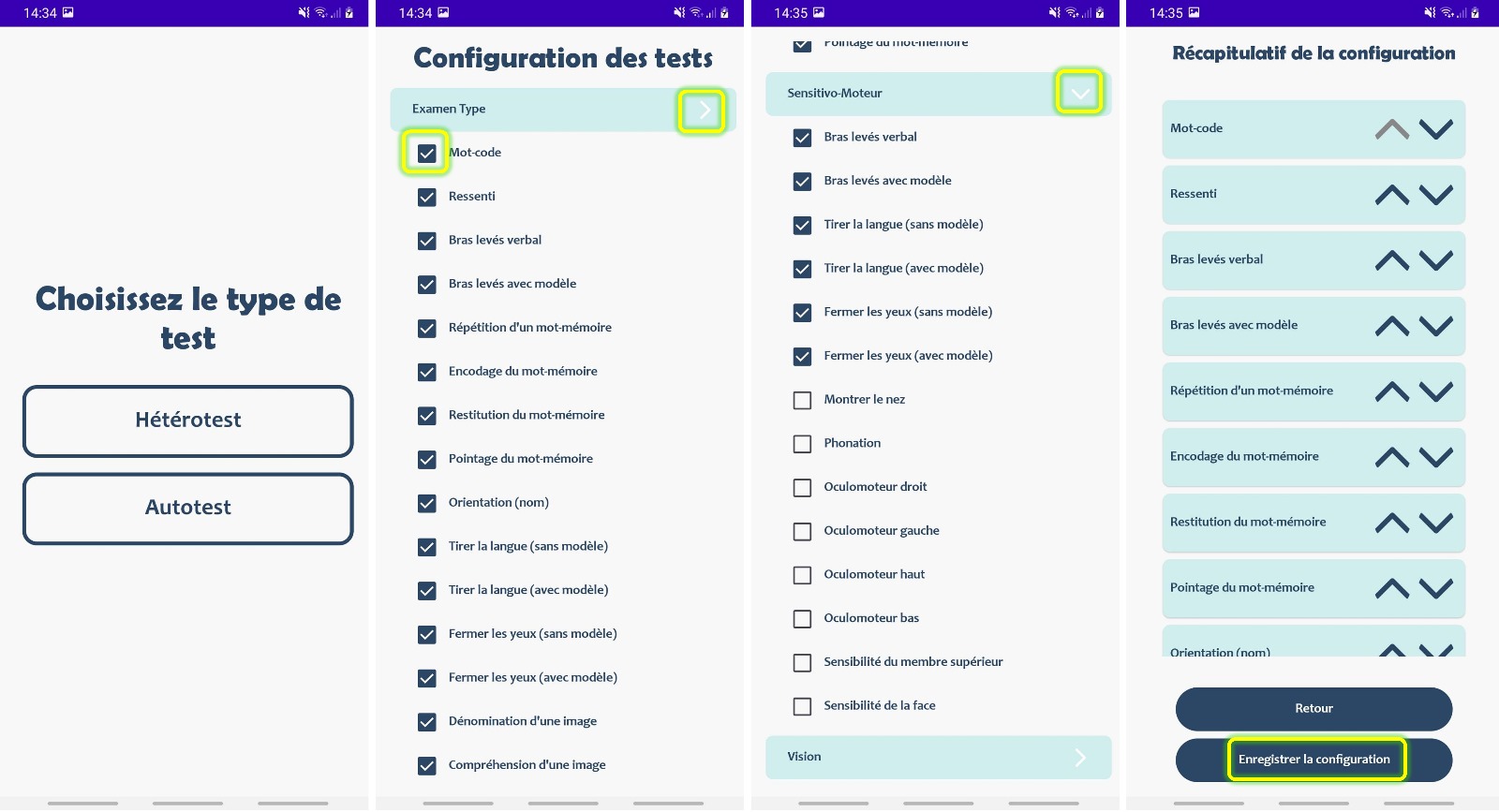
Once this initial configuration is completed, the application is ready to use. If necessary at a later date, the test protocol can be modified in the "Options" tab of the application.
Enable the quick launch widget
It is important to start recording as quickly as possible at the onset of a seizure, as this is often the most informative period.
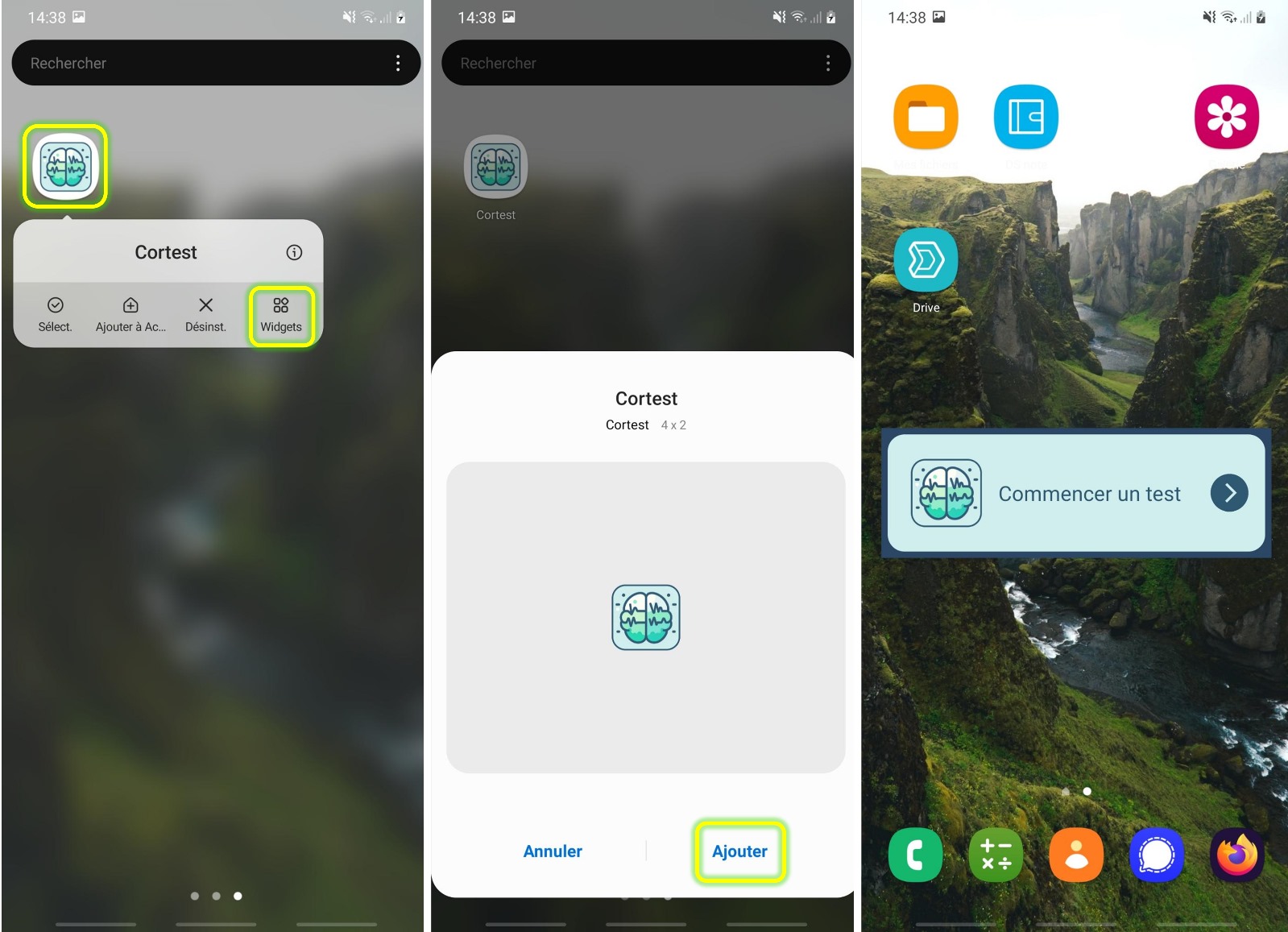
A widget can be placed on the phone's home screen, allowing you to start recording a seizure with a single click, without having to search for the app in the phone's menus. It can be activated by long pressing the app icon, then clicking on "Widget" and dragging the widget to the phone's home screen.
Reviewing videos
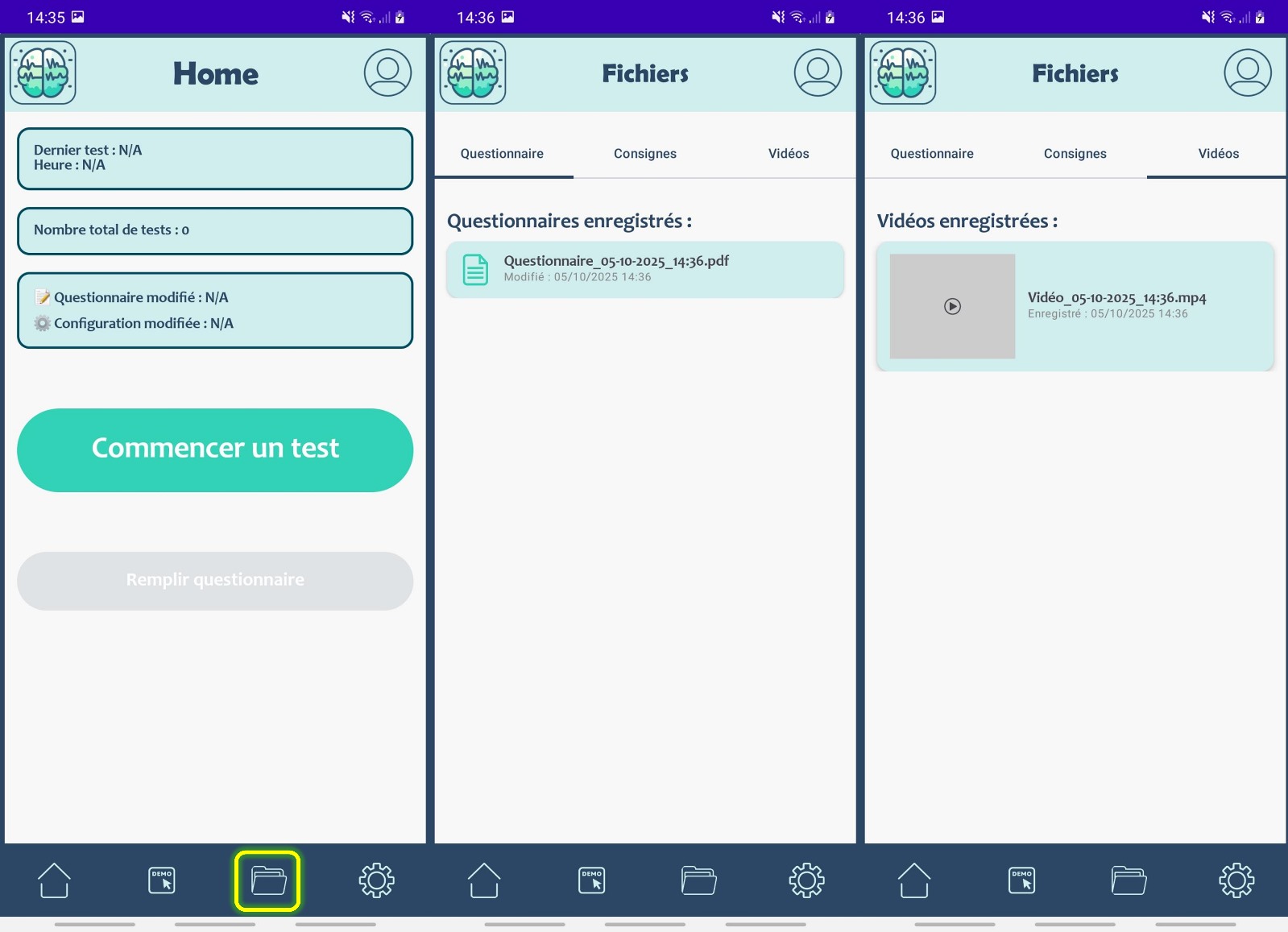
Once videos have been recorded, you can find them under the various tabs in the app.
Any comments ?
CorTest is a young app still in development. If you have any comments, you can let us know by starting a conversation on the app's GitHub : GitHub - CorTest.